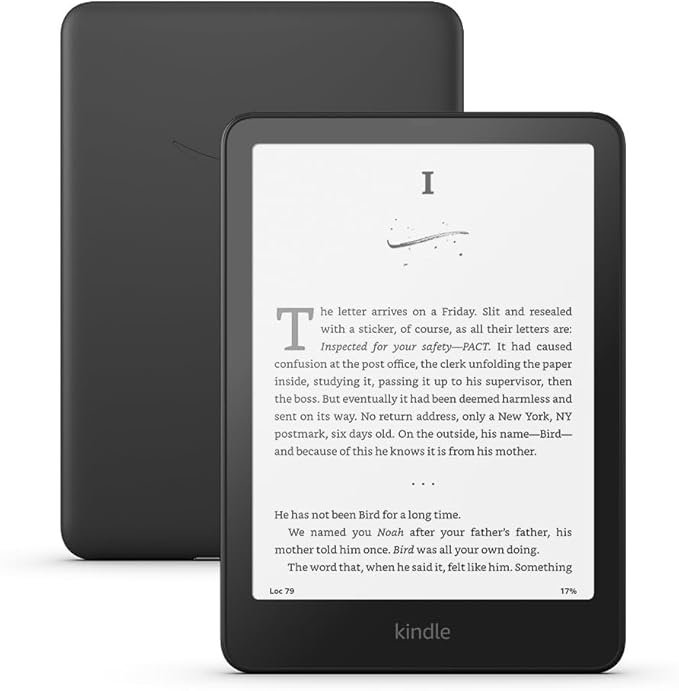
Your Kindle, that sleek portal to endless stories, often feels like magic. Slip it into a bag, take it anywhere, and summon a new adventure with a tap. Yet, even the most beloved devices have their quirks. Dive into the world of Kindle user experience and software features, and you'll find a landscape of quiet satisfaction punctuated by occasional frustration. We're scrutinizing what works brilliantly, what sometimes trips you up, and how you can get the most out of your digital library, ensuring your reading journey remains smooth sailing.
At a Glance: Your Kindle UX Cheat Sheet
- Connectivity Blues: Public Wi-Fi can be tricky. Download books before you travel, or use your phone's hotspot.
- Shopping Smarter: Avoid duplicate purchases by using "Manage Your Content and Devices" on Amazon's website or sampling books first.
- Page Turn Perfection: A light tap is usually better than a swipe to prevent freezing.
- Power Button Protection: An Amazon-approved case can save you from accidental presses.
- Beyond Books: Leverage features like Kindle Unlimited, Amazon First Reads, and Libby for vast reading options.
- Share the Love: Amazon Family Sharing makes it easy to share libraries and Prime perks.
- Personal Documents: "Send to Kindle" is a powerful, free tool for reading your own files.
- Your Voice Matters: Send feedback directly from your device – Amazon listens.
The Unspoken Contract: Why We Love (and Nitpick) Our Kindles
The Kindle is, at its heart, a dedicated reading machine. Its e-ink display is a marvel, offering screen-free reading that saves your eyes and battery. It’s light, portable, and capable of holding thousands of books. This singular focus is its greatest strength, differentiating it from tablets that vie for your attention with apps and notifications.
However, this specialization also means it often lacks the robust, flexible features of a general-purpose device. While Amazon continually refines its software, the Kindle user experience sometimes feels like a carefully curated garden where some paths are beautifully paved, and others are still a bit rocky. Understanding these nuances isn't about complaining; it's about empowering you to navigate the ecosystem like a pro and unlock its full potential.
Navigating the Digital Library: Common UX Hurdles & Smart Workarounds
Let's face it: no device is perfect. Kindles, for all their literary prowess, occasionally present minor annoyances that can interrupt your reading flow. The good news? Most have straightforward solutions or intelligent workarounds.
The Wi-Fi Wander: Connectivity Conundrums
Imagine you're finally settled in your hotel room, eager to start that new thriller, only to find your Kindle struggling to connect to the public Wi-Fi. It's a common scenario. Many public networks require a browser-based login or have security protocols that the Kindle's simplified browser just can't handle. This isn't just an inconvenience for downloading new books; it can also prevent crucial software updates, leaving your device vulnerable or behind on features.
Your Savvy Solutions:
- Pre-emptive Downloading: The simplest fix is often the best. Before you leave home, ensure all the books you anticipate reading on your trip are downloaded to your device. You can pack an entire library without needing internet access on the road.
- Mobile Hotspot Magic: Your smartphone is a powerful internet hub. Connect your Kindle to your phone's mobile hotspot, and you'll bypass most public Wi-Fi complexities. It’s a reliable way to get online for quick downloads or updates. For an overview of how your device fits into the broader e-reader landscape, consider choosing the right Kindle model that best suits your travel and reading habits.
Purchasing Puzzles & Library Labyrinth: Keeping Your Books in Order
You've probably been there: wanting to buy a book on your Kindle, only to hit a snag with a "separated financial link," or worse, accidentally buying a book you already own. Amazon’s vast catalog and publisher re-issues with new ISBNs can make tracking your past reads a genuine challenge. This is where a little proactive management goes a long way.
Your Savvy Solutions:
- Desktop for Deals & Purchases: For a smoother purchasing experience, especially if you're browsing or looking for specific editions, consider using your computer or tablet to buy books directly from the Amazon website. Once purchased, they'll automatically appear in your Kindle library, ready for download. This also gives you a clearer view of pricing and reviews.
- Track Your Reads: To avoid duplicate purchases, leverage these Kindle and Amazon features:
- Kindle's "Library View": Take a moment to scroll through your existing library on your device. It might seem obvious, but a quick scan can jog your memory.
- Download a "Sample": Before committing to a purchase, especially if you have a vague recollection of a title, download a free sample. If you already own the book, the Kindle will often alert you or show a "Read Now" option instead of "Buy."
- "Manage Your Content and Devices": This is your ultimate digital librarian, accessible via Amazon’s website. Here, you can see every book you've ever purchased, filter by "Read" or "Unread," and even organize titles into collections. It’s the most reliable way to verify ownership before clicking "Buy" again.
The Frozen Flip: Performance Hiccups
There's nothing quite like being engrossed in a story, only for your Kindle screen to freeze mid-page turn. While generally responsive, some users report occasional hangups, especially when swiping rather than tapping. It can feel like your dedicated reading device is momentarily rebelling against its core purpose.
Your Savvy Solutions:
- Tap, Don't Swipe (Usually): Many users find that a light tap on the screen for page turns is more reliable and less prone to freezing than a swiping motion. The e-ink technology, while fantastic for reading, sometimes has a slight delay compared to LCD screens, which can make aggressive swiping feel clunky.
- Restart if Stuck: If your Kindle does freeze, hold down the power button for about 40 seconds (or until the restart screen appears). This soft reset often resolves temporary software glitches. While a Kindle excels at reading, sometimes the fluidity of a tablet might be more appealing for other tasks; you can explore the considerations in Kindle vs. tablet for reading to understand the trade-offs.
The Accidental Awakening: Hardware Design Quirks
The power button on some Kindle models can be a bit… sensitive. Its placement, often on the bottom edge, makes it susceptible to accidental presses when holding the device or slipping it into a bag. This can lead to unwanted battery drain or interrupting your flow when you pick it up later.
Your Savvy Solutions:
- Embrace the Case: An Amazon-approved case isn't just for protection; it's a design solution. Many cases feature a recessed area or a cover that prevents inadvertent power button presses. Plus, many offer auto-wake/sleep functionality, which is a major convenience.
- Future Redesigns: Amazon is constantly innovating. Kindle devices are typically redesigned every 2-3 years, and user feedback (which we'll cover shortly) directly influences these changes. A recessed button design is a frequent request, so keep an eye on future models. For a deeper dive into how these devices have evolved, check out our guide to Understanding Kindle Generations and what each brings to the table.
Beyond the Basics: Unlocking Kindle's Powerful Software Features & Services
The Kindle is more than just a screen for books; it's a gateway to an expansive ecosystem of services and features designed to enhance your reading life. From subscription models to free book programs, Amazon and its partners offer numerous ways to discover and consume content.
Kindle Unlimited: Your All-You-Can-Read Buffet
Think of Kindle Unlimited (KU) as the Netflix of books. For a monthly fee ($11.99, though this can change), you gain access to a vast library of hundreds of thousands of titles, including bestsellers, indie gems, and audiobooks. You can borrow up to 20 titles at a time, keeping them for as long as you're subscribed. It's an excellent way to explore new genres or authors without committing to a purchase.
Pro-Tip: Keep an eye out for free trial months, especially around major sales events like Prime Day. These trials are often extended, giving you ample time to decide if the service is right for you. While diving into Kindle Unlimited, remember to make the most of your device; you might find some useful tips for maximizing your Kindle's battery life to ensure your reading sessions are uninterrupted.
Amazon First Reads: Early Access to Your Next Favorite
For Prime members, Amazon First Reads is a fantastic perk. Each month, you can select one free Kindle book from a curated list of six editor's picks, often weeks before their official release date. It's a great way to discover new voices or genres at no additional cost. Non-Prime members can still participate by paying $1.99 for one of the monthly selections. It’s like having a literary critic on your side, hand-picking potential hits.
Kindle Rewards: Get Paid to Read
Reading more and earning rewards? Yes, please! Kindle Rewards is a free program where you earn 3 points for every $1 spent in the Kindle Store, starting with your very first purchase. Rack up 300 points, and you can redeem them for a $3 reward, which can be applied to future Kindle book purchases. Amazon occasionally offers double or triple point days, making it even easier to earn credit towards your next read. It's a simple, passive way to save on your digital library.
Stuff Your Kindle Day: The Indie Reader's Delight
While not an official Amazon event, "Stuff Your Kindle Day" has become a beloved tradition among digital readers. This grassroots phenomenon, driven by indie authors, sees a surge of free or heavily discounted eBooks for 24-hour periods. It's a fantastic opportunity to discover new independent authors and expand your library on a shoestring budget. Keep an eye on book blogs and social media for announcements about these events. Understanding how these promotions work can sometimes involve knowledge of Digital Rights Management (DRM) in eBooks and how it affects content availability.
Libby App: Your Local Library, Digitized
If you have a library card, you have access to a treasure trove of digital books and audiobooks through the Libby app (by OverDrive). Libby works on smartphones, tablets, and web browsers, allowing you to borrow titles directly from your local library's collection. The best part? With a single click, you can send these borrowed eBooks directly to your Kindle for an authentic e-ink reading experience. It’s an indispensable, free resource for avid readers.
Amazon Family Sharing: Sharing the Literary Wealth
Families that read together, stay together! Amazon Family Sharing allows Prime membership perks, including access to the Kindle library, to be shared between two adults and up to four children within a household. This means less hassle with multiple accounts, no accidental duplicate purchases of the same book, and shared access to a collective digital library. It’s a smart way to manage your family’s reading and digital purchases, fostering a shared love for books. For those with varying needs, exploring Kindle's accessibility features can ensure everyone in the family has a comfortable reading experience.
Send to Kindle: Personal Documents, Perfected
Your Kindle isn't just for purchased books. The free "Send to Kindle" service allows you to easily upload a wide range of compatible files directly to your Kindle device. This means you can read PDFs, Word documents, text files, web articles, and even images (e.g., ePUB, PDF, DOC, DOCX, TXT, RTF, HTM, HTML, PNG, GIF, JPG, JPEG, BMP) with the comfort of your e-reader. It's perfect for work documents, academic papers, or even long articles saved from the web. You can send files via email, a web browser, or dedicated apps, making your Kindle a versatile personal document reader.
Providing Feedback: Making Your Voice Heard
Amazon, for all its might, does pay attention to user feedback. If you encounter a persistent bug, have an idea for a new feature, or simply want to praise something you love, you can send feedback directly from your Kindle device. This direct line to the developers ensures that your experiences, both good and bad, contribute to future improvements.
One area Amazon has acknowledged as complex for some users is its two-factor authentication (2FA) process. While essential for security, some users find it overly complicated when trying to log in or make purchases on their Kindles, especially with its limited browser capabilities. Direct feedback through the device is often the most effective way to highlight these pain points, driving iterative changes and better future software.
The Bottom Line: A Reading Experience That Keeps Evolving
The Kindle user experience and its suite of software features represent a sophisticated ecosystem designed to put reading first. While there are occasional friction points, such as connectivity challenges or hardware quirks, Amazon continually refines its offerings based on user feedback and technological advancements.
By understanding the common complaints and implementing simple workarounds, you can turn potential frustrations into minor blips on your reading radar. More importantly, by actively leveraging features like Kindle Unlimited, Libby, Amazon Family Sharing, and Send to Kindle, you unlock a much richer, more versatile reading experience than a simple e-reader might suggest. Your Kindle isn't just a device; it's a dynamic platform, and with a little savvy, you can ensure your digital pages keep turning smoothly, effortlessly drawing you into the next great story.