Reading for Everyone: The Power of Accessibility and Inclusive Design in Kindle Devices
Imagine a world where the joy of reading is truly universal, where no barrier, visible or invisible, stands between a story and its reader. This isn't a distant dream; it's the reality Amazon has been diligently building into its Kindle devices for years. Far beyond simple digital books, Kindles today embody a profound commitment to Accessibility and Inclusive Design in Kindle Devices, ensuring that millions of individuals with diverse needs—from visual impairments to dyslexia, cognitive differences to mobility challenges—can dive into the literary world with ease and confidence.
Since 2016, Kindle has steadily expanded its robust suite of accessibility features, transforming the reading landscape. This guide pulls back the curtain on these powerful tools, showing you how they work, who they help, and how you can unlock a truly personalized, comfortable, and empowering reading experience for yourself or someone you care about.
At a Glance: Kindle's Inclusive Reading Toolkit
- Personalized Views: Adjust fonts, sizes, line spacing, margins, and screen orientation to suit your eyes.
- Dyslexia-Friendly Font: Specifically designed to enhance readability for dyslexic readers.
- Audio Narration: VoiceView reads screen content aloud for visually impaired users (Paperwhite models).
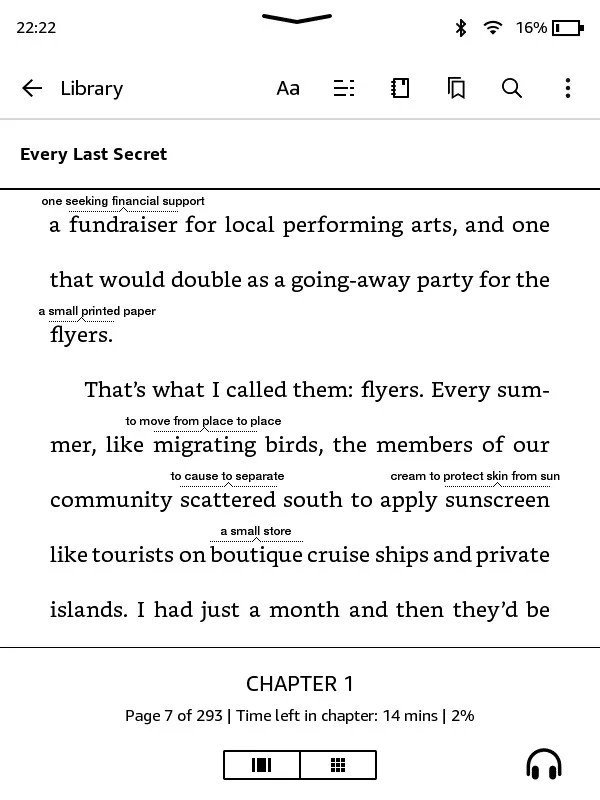
- Comprehension Boosters: Word Wise and X-Ray provide instant definitions, summaries, and context without interrupting your flow.
- Focus Aids: The Reading Ruler and Assistive Reader help maintain focus and improve comprehension.
- Sensory Comfort: Dark Mode and adjustable brightness reduce eye strain and accommodate light sensitivities.
- Seamless Switching: Whispersync lets you jump between text and audio versions effortlessly.
- Intuitive Navigation: Control options designed for various mobility needs, including gesture, volume button, and Switch Access support.
- Vast Accessible Library: Millions of eBooks are fully compatible with screen readers and braille displays.
The Heart of Inclusive Reading: Why Kindle Prioritizes Accessibility
For too long, the publishing world inadvertently created barriers. Traditional print, with its fixed fonts and static layouts, could be a formidable challenge for anyone with less-than-perfect vision, dyslexia, or certain cognitive differences. Digital reading promised a new frontier, and Kindle devices have risen to the occasion, championing the idea that books should adapt to the reader, not the other way around.
Amazon's investment in accessibility isn't just about compliance; it's about empowerment. It recognizes that true inclusion means designing for the widest possible range of human experience. This commitment translates into features that are intuitive, robust, and constantly evolving, ensuring that the magic of storytelling remains accessible to every mind, every pair of eyes, and every hand.
Beyond the Book: Core Accessibility Features in Detail
Kindle's accessibility features fall into several key categories, each designed to address specific needs and enhance the overall reading experience.
Tailoring Your Visual World: Features for Eye Comfort and Clarity
Visual challenges are among the most common barriers to reading. Kindle offers a spectrum of tools to ensure comfort and reduce strain.
- Adjustable Fonts, Font Sizes, and Layouts: This is fundamental. Whether you have limited eyesight, visual impairments, or simply prefer a larger, clearer text, Kindle allows you to customize nearly every aspect of your reading display. You can tweak:
- Font Style: Choose from a variety of fonts to find what's easiest on your eyes.
- Font Size: Scale text up or down to your perfect size. Crucially, current-generation Kindles also let you adjust text size in the user interface, not just within books.
- Line Spacing: Increase the space between lines for better readability, especially helpful for those who find cramped text overwhelming.
- Page Margins: Widen margins to reduce visual clutter and focus on the text itself.
- Display Orientation: Switch between portrait and landscape modes, whatever feels most natural for holding your device.
- Custom Themes: You can even save your preferred combinations of font, spacing, and margin settings as custom themes, making it quick and easy to switch between personalized reading profiles.
- OpenDyslexic Font: For readers with dyslexia, letter recognition and word tracking can be a significant hurdle. The OpenDyslexic font is an open-source typeface specifically engineered to improve readability for dyslexic individuals by making letters less prone to rotation and more distinct. It subtly aids in differentiating between similar characters, enhancing comprehension and reducing reading fatigue.
- Adjustable Screen Brightness: A simple yet crucial feature, adjustable brightness allows you to set the display's luminescence to your exact preference. This is vital for managing visual sensitivities, reading in various lighting conditions, or avoiding eye strain. Many Kindles also offer an auto-brightness option, adapting the screen to your environment automatically.
- Dark Mode (Invert Black and White): For some, especially those with certain visual sensitivities or sensory-related disabilities, a traditional black-on-white display can be too stimulating. Dark Mode inverts the colors, presenting white text on a black background. This reduces backlight glare, offering a gentler, more comfortable reading experience that can significantly decrease eye strain in low-light conditions.
- VoiceView: Exclusive to Kindle Paperwhite models, VoiceView is a built-in screen reader that transforms the visual interface into an auditory one. When paired with a Bluetooth audio device (like headphones or a speaker), VoiceView reads aloud everything on the screen—from the text of a book to the names of settings, icons, and menu options. This powerful text-to-speech technology allows visually impaired readers to navigate their Kindle with complete independence, opening up a world of digital content.
Bridging Comprehension Gaps: Tools for Learning and Focus
Reading isn't just about seeing words; it's about understanding them. Kindle offers intelligent features to support cognitive processes, vocabulary building, and sustained focus.
- Word Wise / Vocabulary Tools: Ever hit a complex word that breaks your reading flow? Word Wise solves this by providing simple definitions or synonyms directly above challenging words, without requiring you to stop and look them up. It's a fantastic tool for language learners, young readers, or anyone who struggles with reading comprehension. Beyond Word Wise, Kindles offer robust vocabulary tools, including built-in dictionaries, translation capabilities, and even the ability to hear pronunciations via the Kindle app.
- X-Ray Feature: Diving into a long, intricate novel with many characters and subplots can be daunting. X-Ray acts like a dynamic book guide, offering quick character overviews, plot summaries, and relevant information (like frequently mentioned words, phrases, places, and names). This is invaluable for readers with learning difficulties, those who struggle with memory recall, or anyone trying to keep track of a complex narrative. It allows you to quickly refresh your memory without leaving the page.
- Assistive Reader: The latest innovation for enhanced reading, the Assistive Reader feature brings text-to-speech audio with synchronized word highlighting to the Kindle app (iOS, Android, Fire tablets) and current generation Kindle devices. This is particularly beneficial for individuals with dyslexia or other reading disabilities, as hearing the words pronounced while seeing them highlighted can significantly reduce pronunciation stress, improve word recognition, and enhance overall comprehension.
- Reading Ruler: Available on the Kindle app for iOS, Android, and Fire tablets, the Reading Ruler is a customizable overlay that sits on top of the text. It directs your eyes to one line at a time, acting as a visual guide. This ingenious feature helps readers with focus difficulties, ADHD, or challenges with text tracking by minimizing distractions and keeping their place on the page.
Seamless Navigation & Comfort: Features for Mobility and Dexterity
Access to books should not be limited by physical interaction challenges. Kindle offers flexible control options.
- Whispersync: While not solely an accessibility feature, Whispersync provides a critical benefit for many. It synchronizes your content—your last page read, bookmarks, and notes—across all your Kindle devices and apps. This means you can seamlessly switch between reading an eBook and listening to its audiobook counterpart (if purchased from Amazon or Audible) and pick up exactly where you left off. For readers with visual impairments or those experiencing eye fatigue, switching to the audio version with a tap can provide much-needed relief and continuity. Activating it ensures a smooth journey across your devices, no matter which Kindle generation you might be using.
- Navigate with Different Gestures: Kindle understands that everyone interacts with technology differently.
- Page-Flipping: Readers can choose between swiping gestures or simply tapping the edges of the screen to turn pages.
- Continuous Scrolling: On the Kindle app, an option for continuous scrolling eliminates page breaks, allowing for a fluid reading experience.
- Orientation: Adjustable portrait or landscape orientation caters to different holding preferences and needs.
- Volume Controls for Pages: For users of Kindle for Android and Fire tablets, the physical volume buttons can be configured to turn pages, offering an alternative control method for those with dexterity challenges.
- Switch Access: Fire tablets also support Switch Access, allowing navigation and interaction using compatible Bluetooth devices for individuals with limited motor skills.
Putting It into Practice: How to Activate and Customize Your Kindle
Unlocking these features is surprisingly straightforward. Here’s how you can tailor your Kindle experience:
Adjusting Fonts, Sizes, and Layouts
- Open any book on your Kindle.
- Tap the top of the display to bring up the reading toolbar.
- Tap the "Aa" icon.
- A menu will appear, allowing you to select your preferred font style, font size, line spacing, page margins, and display orientation. Experiment until you find what's most comfortable.
Using the OpenDyslexic Font
- While reading a book, tap the top of the display and select the "Aa" icon.
- Under "Font" options, tap "Font Family."
- Choose "OpenDyslexic" from the list.
Activating VoiceView (Kindle Paperwhite Models Only)
VoiceView can be activated in a couple of ways:
- Quick Activation:
- Turn on your Bluetooth audio device and put it into pairing mode.
- On your Kindle, press and hold the Power button for nine seconds.
- Then, hold two fingers apart on the display for one second. VoiceView will attempt to pair and activate.
- Via Settings:
- Go to Settings > Accessibility > VoiceView Screen Reader.
- Toggle the option to "On." You will be prompted to connect a Bluetooth device.
Leveraging Word Wise
- Open a book and tap the top of the screen.
- Select the "Aa" icon, then navigate to the "More" tab.
- Scroll down to "Word Wise" and Toggle it "On."
- Once activated, the Word Wise icon (a small 'WW') will appear at the bottom-right of the display. Tap this icon and use the slider to adjust the frequency of definitions shown above words.
Enabling the X-Ray Feature
- While reading, tap the top of the display.
- Tap the three-dot menu button in the upper-right corner.
- Select "X-Ray" from the drop-down menu to explore characters, topics, and more within your current book.
Activating Whispersync
Whispersync is often on by default, but it's good to know where to check:
- Via Amazon Website: Go to "Account and Lists" > "Content and Devices" > "Preferences" tab > "Device Synchronization (Whispersync Settings)" and ensure the option is "On."
- On Kindle Device: Go to Settings > Device Options > Advanced Options > Whispersync for Books and tap "Enable."
- On Kindle App: Go to Settings > Other > Whispersync for Books and toggle the option "On."
- Note: Whispersync requires a stable WiFi connection and the book to be purchased in relevant formats (eBook, audiobook) from Amazon or Audible.
Adjusting Screen Brightness
- Swipe down from the top of your Kindle screen to access the Quick Settings menu.
- Under "Brightness," use the slider to adjust the level.
- You can also tick "Auto Brightness" for automatic adjustments based on ambient light.
Activating Dark Mode
- Go to Settings > Accessibility.
- Select "Invert Black and White" to toggle Dark Mode on or off.
Remember to keep your Kindle device's software updated to ensure you have access to the latest accessibility features and improvements.
Unlocking a Better Reading Experience: Who Benefits Most?
These features aren't just technical specifications; they are pathways to greater independence and enjoyment for a diverse community of readers:
- Visually Impaired or Low Vision Readers: Benefit immensely from adjustable font sizes and styles, high contrast (Dark Mode), and especially VoiceView for full interface navigation. The availability of accessible Kindle books compatible with screen readers and refreshable braille displays is a game-changer.
- Dyslexic Readers: Find relief and improved comprehension with the OpenDyslexic font, Word Wise definitions, the Assistive Reader's synchronized highlighting, and the Reading Ruler's focus aid.
- Individuals with ADHD or Focus Challenges: The Reading Ruler helps maintain concentration, while X-Ray can provide quick refreshers to keep them engaged with complex plots. Customizable layouts with wider spacing can also reduce visual overwhelm.
- Language Learners: Word Wise, dictionary lookups, and translation features are powerful aids for expanding vocabulary and understanding new languages.
- Those with Mobility Limitations: Alternative navigation methods like volume button page turns and Switch Access on Fire tablets offer crucial flexibility. Whispersync's seamless transition between reading and listening can also provide relief.
- Readers with Cognitive Load Challenges: X-Ray helps track complex storylines, while Word Wise simplifies difficult vocabulary, reducing the cognitive effort required to enjoy a book. The Assistive Reader's multi-sensory approach can also enhance learning.
Beyond the Device: Kindle App Accessibility
Many of Kindle's inclusive features extend to the Kindle app on iOS, Android, and Fire tablets, ensuring a consistent and accessible reading experience regardless of whether you're on a dedicated e-reader or your smartphone.
Features like the Reading Ruler, Assistive Reader with synchronized highlighting, robust vocabulary tools including pronunciation, and continuous scrolling are readily available within the app. This cross-platform compatibility, combined with Whispersync, means you can carry your personalized, accessible reading environment with you wherever you go.
Addressing Common Questions & Misconceptions
Are all Kindle books accessible to screen readers?
While the Kindle Store offers over 12 million eBooks fully accessible to screen readers and refreshable braille displays, it's not every single book. Amazon does provide accessibility icons on book detail pages to indicate feature support, helping you make informed choices.
Is VoiceView available on all Kindle devices?
No, VoiceView is an exclusive feature for Kindle Paperwhite models. Other Kindles do not currently support this built-in screen reader.
Do I need special hardware to use Kindle's accessibility features?
For most features like font adjustments, Dark Mode, Word Wise, and X-Ray, no special hardware is needed. However, to use VoiceView, you will need a Bluetooth audio device (headphones or a speaker) for the audio output.
How do I know if a Kindle book supports accessibility features?
Look for specific accessibility icons on the book detail pages in the Kindle Store. These icons indicate support for features like screen readers.
The Future is Inclusive: What's Next for Kindle Accessibility?
Amazon's commitment to accessibility is an ongoing journey, not a destination. As technology evolves and understanding of diverse user needs deepens, we can expect Kindle devices to continue to innovate and refine their inclusive design. Regular software updates bring new features and improvements, reflecting a responsive approach to reader feedback and a dedication to making the literary world open to all.
Your Personalized Reading Journey Starts Here
The extensive array of Accessibility and Inclusive Design in Kindle Devices isn't just about catering to specific needs; it's about enhancing the reading experience for everyone. By offering a highly customizable, adaptable, and intuitive platform, Kindle empowers you to create your ideal reading environment.
Whether you're struggling with a visual impairment, seeking tools to improve comprehension, or simply desiring a more comfortable way to read, take the time to explore these features. Experiment with different settings, activate the tools that resonate with your needs, and discover how your Kindle can become a truly personalized window to countless stories and endless knowledge. Your next great read awaits, tailored just for you.